Connect Shopify as a sales channel
Create a Shopify Dev Dashboard app, add the scopes and redirect URL, and paste your Client ID and Secret into Worldwatch to publish listings, sync inventory, and import orders.
Got a question about this guide? Use Open to continue it in Claude or ChatGPT.
Connecting Shopify lets Worldwatch publish your listings, sync inventory, and import your orders. You create a small app in Shopify's Dev Dashboard, give it the right permissions, and paste two credentials (a Client ID and Secret) into Worldwatch. It takes about ten minutes, and you only do it once.
Before you start
- Your store's
.myshopify.comaddress, for examplevintagemasters.myshopify.com. You find it in your Shopify admin under Settings → Domains. Your own domain, such asvintagemasters.eu, is where customers shop; the connection uses the.myshopify.comaddress. - Admin access to your Shopify store, so you can open the Dev Dashboard and create an app.
- About ten minutes.
Create the Shopify app
Log in to your Shopify admin
Go to https://admin.shopify.com/store/your-store-name and sign in with the store you want to connect.
Open Develop apps
In the sidebar, click Settings (bottom-left corner), then Apps, then Develop apps in the top-right corner. This opens Shopify's Dev Dashboard, where you build your app.
Shortcut: from any admin page you can also click your store name in the top-right, then the </> (View Dev Dashboard) icon.

Create an app
In the Dev Dashboard, open Apps in the left menu, then click Create app (depending on your view, it sits at the top-right or the bottom of the Apps page).

Name the app
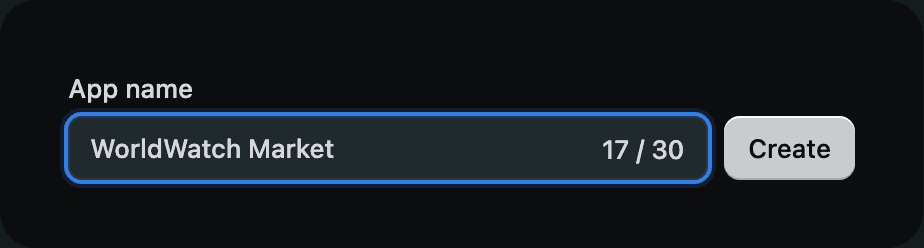
Under Start from Dev Dashboard, type WorldWatch Market as the app name and click Create.
Add the access permissions (scopes)
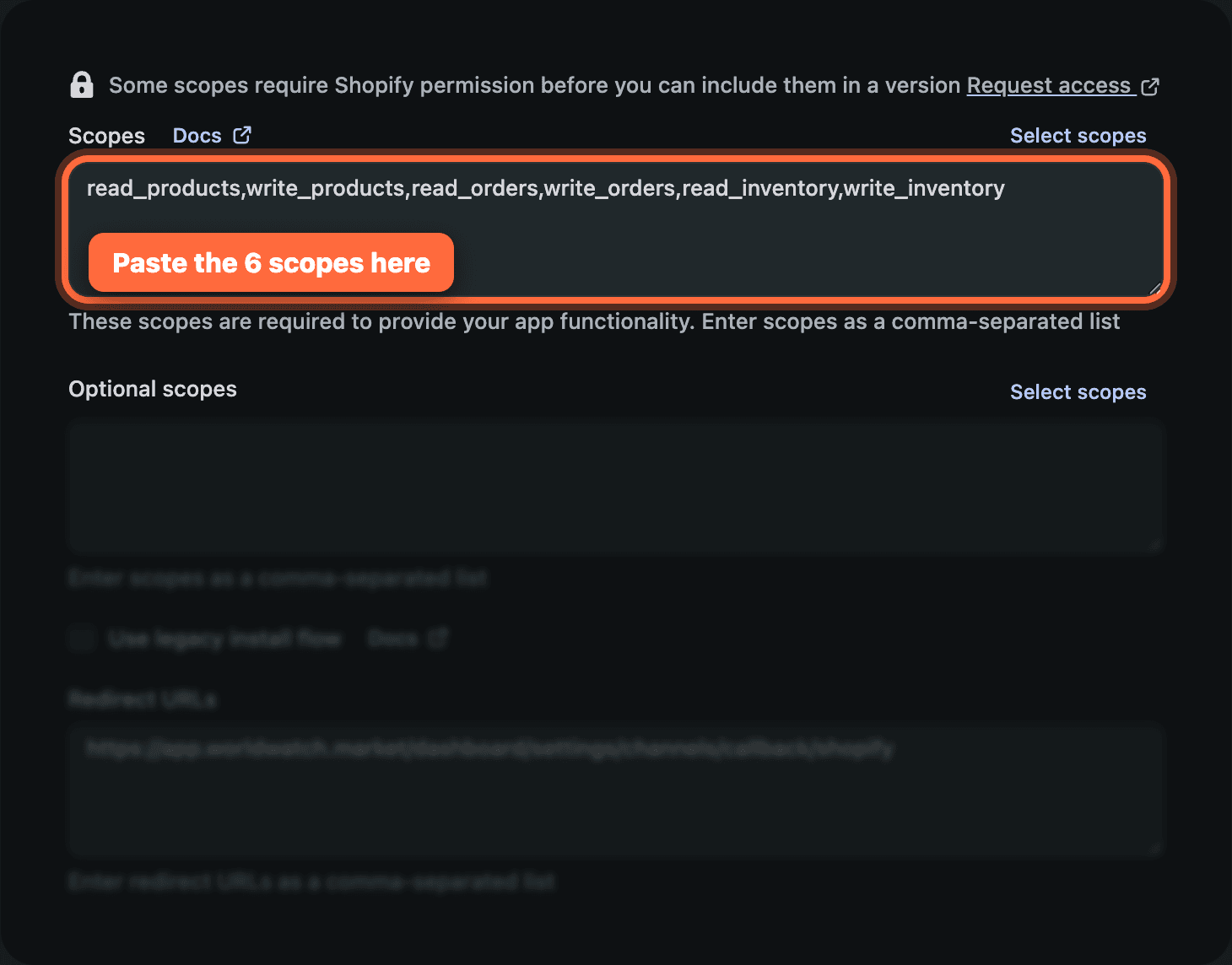
Open your new app, go to Versions → Create version, and scroll to the Access section. In the Scopes box, paste this exact line, copy it as-is, commas and all:
read_products,write_products,read_orders,write_orders,read_inventory,write_inventory,read_customers,read_publications,write_publications,read_locations,read_shipping,write_shippingThese permissions let Worldwatch read and update your products, orders and inventory, publish products to your Online Store, read your locations, and set up shipping. They also read the buyer's name and email address on an order, so your sales reach your contacts. No payment data is accessed.
Do not shorten this line. Shopify refuses an entire request when one scope is missing rather than returning partial data, so a grant that is one scope short does not work a little less well: publishing to your Online Store fails outright, and order import returns nothing.
Add the redirect URL
In the same section, scroll to Redirect URLs and paste this exact URL. It must match character-for-character, with no trailing slash:
https://worldwatch.market/workspace/settings/channels/callback/shopify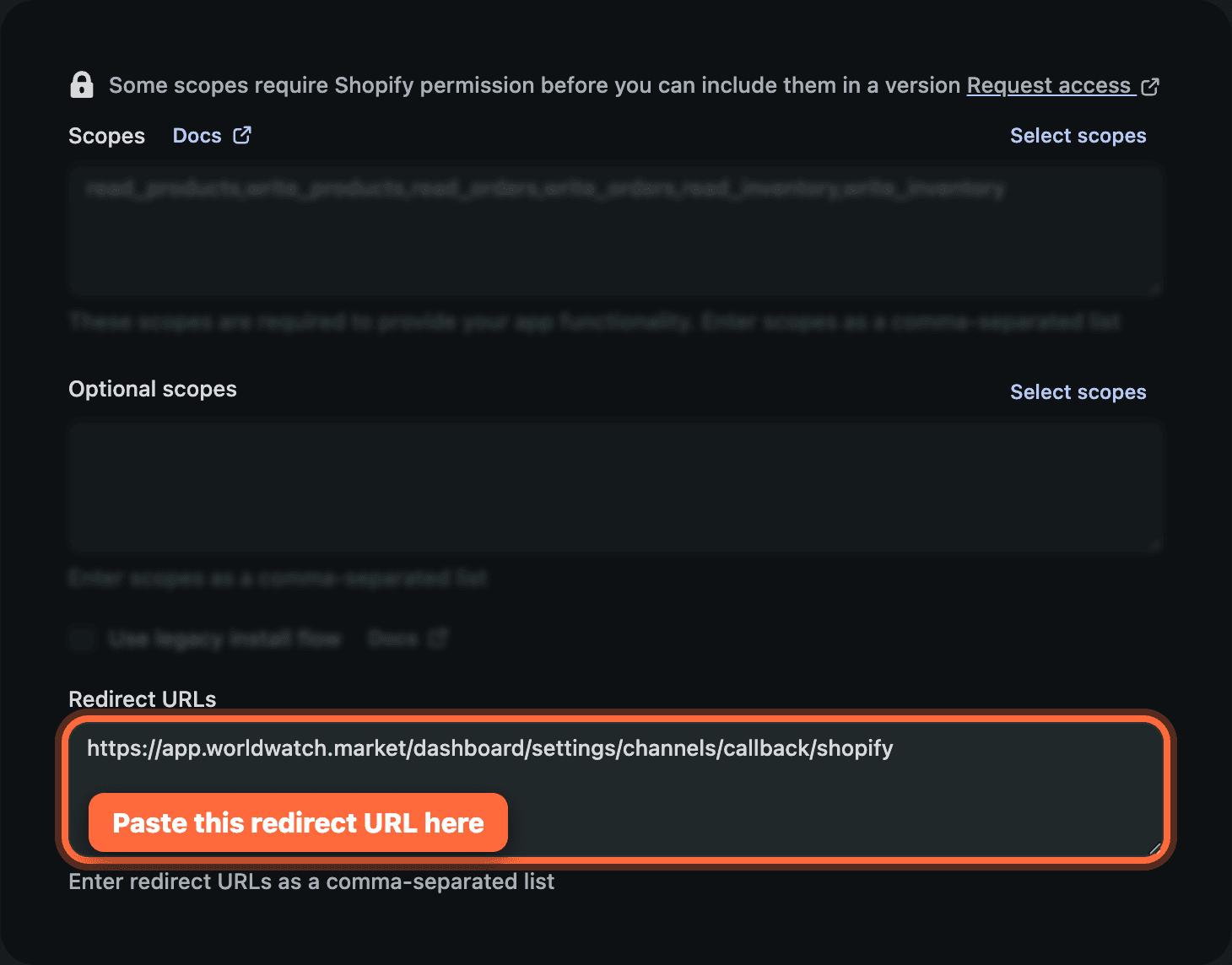
Release the version
Click Release in the top-right. A dialog asks for an optional version name and message. You can leave both blank and just click Release to confirm. Your scopes and redirect URL are now live.

Install the app
Open your app (click its name in the top-left corner), then click Install app on the right. Do this before you copy your credentials; the keys of an app that isn't installed won't connect.
Copy your Client ID and Secret
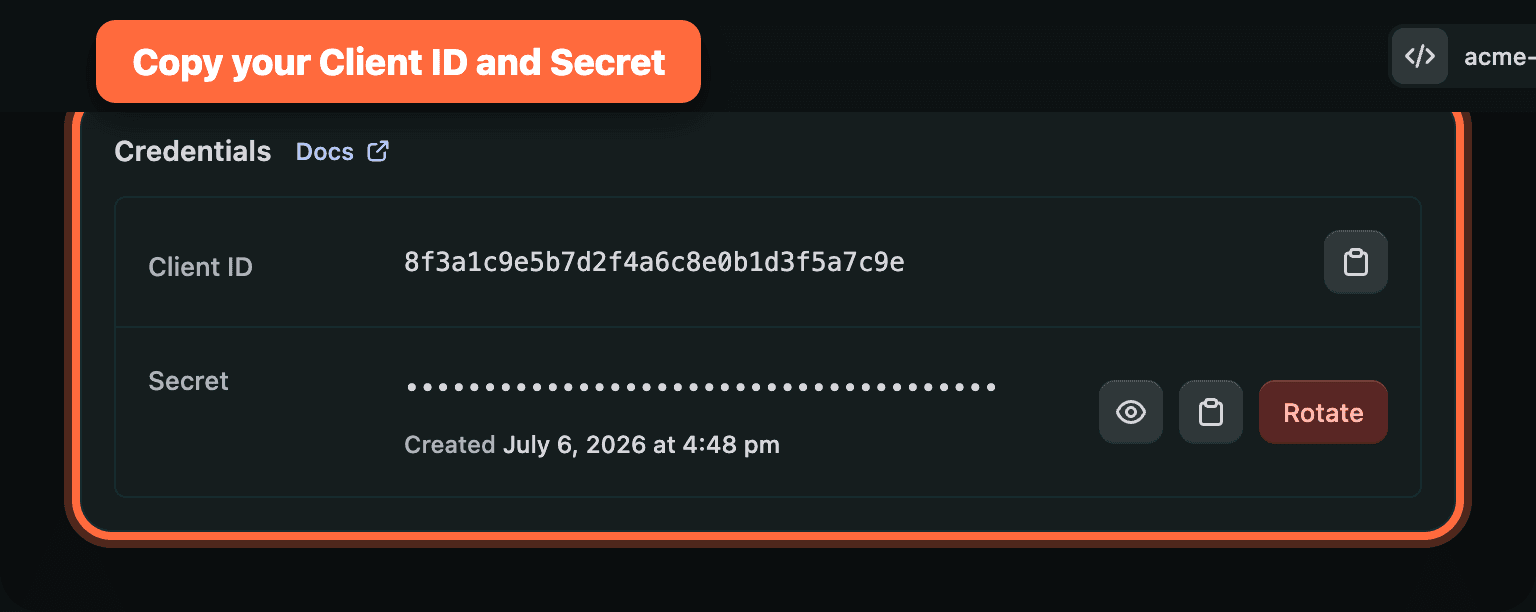
In the app's left menu, click Settings. At the top, the Credentials card shows your Client ID and Secret. Copy both; for the Secret, click the eye icon to reveal it first. Keep the Secret private; if it ever leaks, use Rotate to generate a new one.
Connect it in Worldwatch
Open the Shopify connect panel
In Worldwatch, go to Settings → Channels → Connect Shopify and choose Client ID & Secret.
Fill in the three fields
Enter your Store domain: your .myshopify.com address, for example vintagemasters.myshopify.com. Then add the Client ID (API key) and Client secret (API secret key) you copied.
Authorize
Click Authorize with Shopify and approve on the screen that opens. You're connected. Worldwatch can now publish listings, sync inventory, and import your orders.
Verify
On Settings → Channels, the Shopify tile shows Connected. Open a watch in Inventory → Manage watches, publish it to Shopify, and it appears as a product in your Shopify admin under Products.
Already selling on Shopify? Connecting doesn't copy your existing products into Worldwatch. To bring your current catalog in, see import your products from Shopify or WooCommerce.
Another way to connect: Admin API token
You can also connect with a Shopify Admin API access token instead of Client ID & Secret. Install the app, then in Worldwatch choose Admin API token, enter your .myshopify.com address as the Store domain, and add two things from the app's API credentials page:
- The Admin API access token (it starts with
shpat_). - The API secret key. Shopify signs every order notification with it, so without it Worldwatch cannot tell when something sells and sold watches stay listed. It sits on the same API credentials page as the access token, and it is not the webhook signing secret under Settings → Notifications.
This only works if your store already has a custom app. Shopify stopped allowing new custom apps to be created this way on 1 January 2026, so the Admin API token method applies only to stores that already have one. For a new connection, use the Client ID & Secret method above.
"Shopify cannot tell us when something sells." If you connect without the API secret key, Worldwatch shows this warning on your inventory, and watches sold on Shopify stay listed here and on your other channels. Open the Shopify connection in Settings → Channels, click Fix this, and add the API secret key.
Reconnect after a permissions change
Worldwatch occasionally needs a permission it did not ask for before, and Shopify only grants what was on the approval screen you accepted. When that happens, publishing stops with a message naming the missing scope, and the fix is to walk that screen once more.
Update the scopes in your Shopify app
Open your app in the Dev Dashboard, go to Versions → Create version, and paste the full scope line from Add the access permissions above, replacing what is there. Click Release.
Reconnect in Worldwatch
Go to Settings → Channels, open your Shopify connection, and click Reconnect Shopify. You are sent to Shopify's approval screen and straight back.
You do not retype anything: Worldwatch already holds your Client ID and Secret, and your settings, mappings and published listings are all kept. Anything that was waiting on the missing permission resumes on its own.
Connected with an Admin API token? There is no approval screen to walk, so Reconnect is not offered. Update the scopes on your app, then use Update credentials to save the token again.
Troubleshooting
"Redirect URI mismatch" when authorizing
The redirect URL in your app must match exactly: https://worldwatch.market/workspace/settings/channels/callback/shopify, with no trailing slash. Re-check it in the app's Access section, release a new version, and try again.
"Access denied" or a missing-scope error
Shopify names the scope it wanted, for example Access denied for publications field. Required access: read_publications access scope. Your app was approved for a shorter list than Worldwatch now needs.
In Worldwatch the publish error carries a Reconnect Shopify button. Check first that the Scopes box in your app holds the full line from Add the access permissions, releasing a new version if you had to change it, then follow Reconnect after a permissions change.
The Secret is hidden
On the Credentials card, click the eye icon next to the Secret to reveal it before copying. If it ever leaked, click Rotate and update the new value in Worldwatch.